Estimated read time: 6 minutes
If you have two documents or two versions of a document to compare, then traditional tracked changes is too late, the untracked changes are already in the document.
This work for Collabora Online adds interactive a non-interactive document compare to create tracked changes after the fact, finally introduces a document compare view, to better understand these changes.
Motivation
Collabora Online's core already contained a document compare feature, but this was never integrated with the SDK (REST API) or with the browser UI.
Additionally, while some users took a training in understanding track changes (or: redlines), the usage of underlines for inserts and strike-throughs for deletions may not be obvious. An alternative of this is a side-by-side view, which is now available in Collabora Online for text documents.
Results so far
Non-interactive document compare
See the SDK, now you can convert e.g. an editable (new) docx file to PDF in a way that your request references your old docx file as a parameter, and the resulting PDF shows the differences:
curl -k -F "data=@new.docx" -F "compare=@old.docx" -F "format=pdf" -o out.pdf https://localhost:9980/cool/convert-to
Interactive document compare
Technically this is a bit similar to image insertion: once you open your new document, you can compare its content with an old local or remote document:
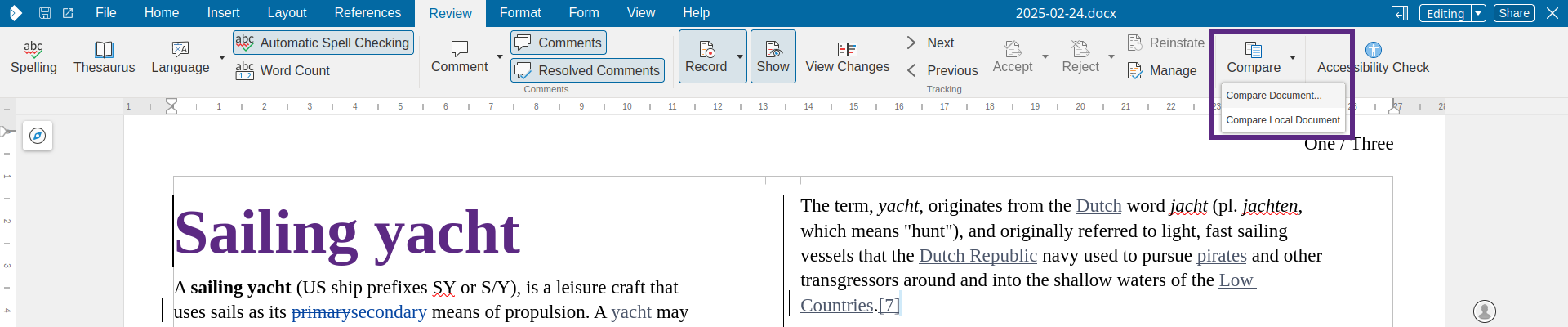
Just use the Compare button on the Review tab on the notebookbar.
Document compare view
We worked with Gokay to build this. The LOK API now provides "tile modes" for text documents, similar to how presentations already have tile modes for slide content, master pages and notes. The default tile mode is unchanged for text documents, but the Review tab of the notebookbar has a View Changes button and then the new left hand side, right hand side tile modes allow you to show the changes side by side:
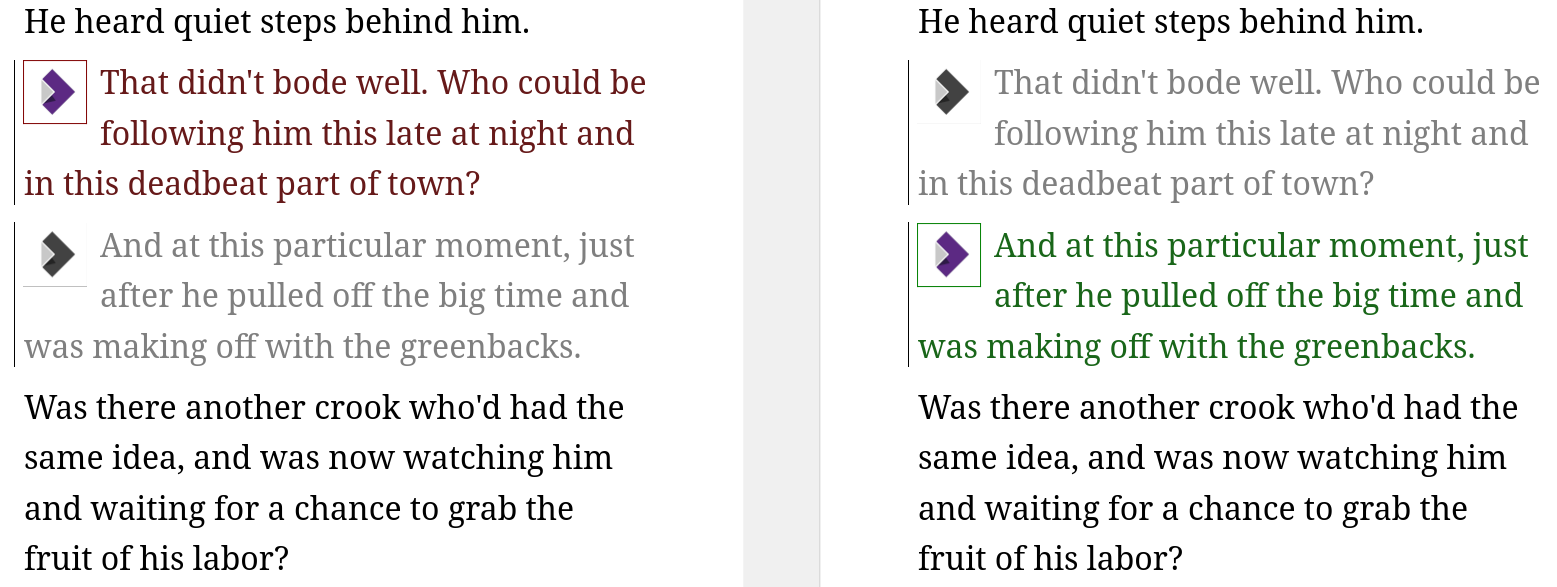
Removed content is colored with a red-like color, added content is colored with a green-like color. The matching content on the other side is gray. This is not only for text, e.g. images have a frame with a similar color.
Now that the LOK API could provide tiles either left or right hand side mode, Gokay built a whole new tile layout on the browser side, so these are shown nicely side by side.
To better understand what you see on your screen, now there are also labels at the top of the first pages:

This describes the purposes of the two sides, and in case you're right after a document compare action, also shows you the file names, modification dates and author names.
For integrators, it's possible to start in this mode by default, if you append &comparechanges=1
to COOL's iframe URL.
Finally if you hover over a tracked change with your mouse, now you get a highlight for that piece of text on both sides, to match the same parts of the old and new version better. A deletion looks like this:
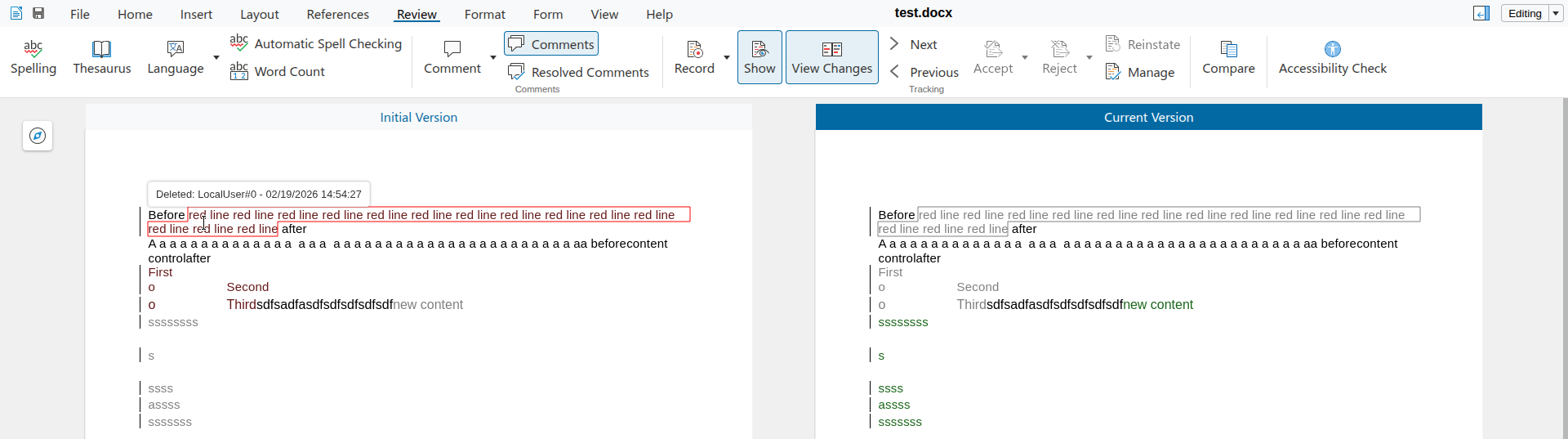
This also works for inserts:
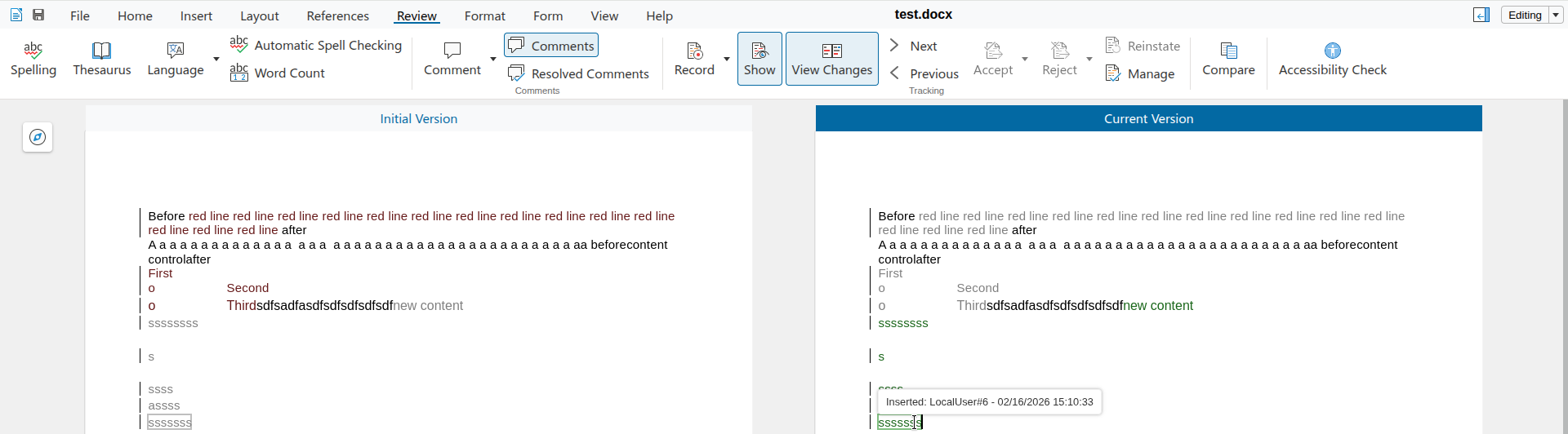
How is this implemented?
If you would like to know a bit more about how this works, continue reading... :-)
As usual, the high-level problem was addressed by a series of small changes. Core side:
- cool#13574 sw lok: introduce a redline render mode view option
- cool#13574 sw lok: improve non-standard redline render mode colors
- cool#13574 sw lok: increase saturation of non-standard redline render mode
- cool#13574 sw redline render mode: add uno command to switch from standard
- cool#13574 sw redline render mode: send LOK status
- cool#13574 sw redline render mode: invalidate both omit modes together
- cool#13574 sw redline render mode: avoid coloring, set lightness
- cool#13574 sw redline render mode: extract SwTextPaintOmitter from text painter
- cool#13988 sw redline render mode: handle anchored images
- cool#13574 sw redline render mode: somewhat color ins/del as green/red
- cool#13988 sw redline render mode: handle inline images
- cool#13988 sw redline render mode: add colored border for anchored images
- cool#13988 sw redline render mode: add colored border for inline images
- cool#13988 sw redline render mode: handle moves
- cool#13988 sw redline render mode: table row redlines
- cool#13988 sw redline render mode: handle number portions
- cool#13988 sw redline render mode: handle tab portions
- cool#13988 sw redline render mode: expose old/new author/date when comparing
- cool#13988 sw redline tooltip LOK API: expose anchor range
COOL side:
- cool#4535 convert-to compare option: introduce 'additional files'
- cool#4535 convert-to compare option: insert old reference doc before save
- cool#4535 convert-to compare option: add testcase
- cool#13574 redline render mode: send statusupdate with mode=2 when entering doc compare mode
- cool#13574 redline render mode: fix missing invalidate after the 2nd enter
- cool#13574 redline render mode: extract sendTileCombineMessage() from sendTileCombineRequest()
- cool#13574 redline render mode: request mode=1 tiles on requesting mode=2 tiles
- cool#13988 browser: fire comparedocuments event on selecting a file for doc compare purposes
- cool#13988 browser, on comparedocuments: send insertfile websocket message
- cool#13988 kit, insert file: handle the comparedocuments type
- cool#13988 doc compare: add testcase
- cool#13988 doc compare, browser: add a new Action_CompareDocuments PostMessage
- cool#13988 doc compare, kit: handle comparedocumentsurl file insertion
- cool#14093 browser: show the user name of other text cursors on mouse hover
- cool#14093 add testcase
- cypress, cursor header section: improve testability
- cool#14299 redline render mode: change notebookbar button type to bigcustomtoolitem
- cool#13988 redline render mode: add a HTTP parameter to activate this mode on load
- cool#13988 redline render mode: fix TilesMiddleware.getMissingTiles()
- cool#13988 redline render mode: improve TilesMiddleware.updateTileDistance()
- cool#13988 redline render mode: fix the HTTP GET parameter
- cool#13988 redline render mode: add missing tiles testcase
- cool#13988 redline render mode: add a new CompareChangesLabelSection
- cool#13988 redline render mode: scroll CompareChangesLabelSection
- cool#13988 redline render mode: labels can be now multiline
- cool#13988 redline render mode: display author / modification date for both sides
- cool#13988 redline render mode: deduplicate the label setup code for the two sides
- cool#13988 redline render mode: center the title vertically when we have no subtitle
- cool#13988 redline render mode: avoid doc name when just viewing tracked changes
- cool#13988 redline render mode: switch to gray/blue backgrounds for the labels
- cool#13988 redline render mode: show the old file name in the old label after local compare
- cool#13988 redline render mode: try to avoid DOM node touch while drawing
- cool#13988 redline render mode: show the old file name also with a remote compare
- cool#13988 redline render mode: fix insert/delete tooltip
- cool#13988 redline render mode: extract common code from ContentControlSection to CanvasSectionObject
- cool#13988 redline render mode: add a new TooltipAnchorSection
- cool#13988 redline render mode: add dynamic color for the tooltip anchor section
- cool#13988 redline render mode: don't highlight redline ranges by default
- cool#13770 windows: use LOK's new registerFileSaveDialogCallback()
- cool#13988 redline render mode: highlight both sides
- cool#13988 redline render mode: adjust highlight color to text color
- cool#13988 redline render mode: work with last used tile mode when showing tooltip
- cool#13988 redline render mode: add tooltip anchor section cypress test
- Related: cool#14716 document compare: fix position of the context toolbar
- Related: cool#14716 document compare: add context toolbar position test
- cool#14716 document compare: fix bad tile position after zoom change
Want to start using this?
You can get a development edition of Collabora Online 25.04 and try it out yourself right now: try the development edition.