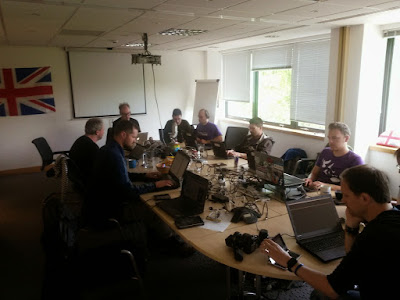
The first ever UK LibreOffice Hackfest took place in the city of Cambridge on
May 21st to 23rd (Thursday -> Saturday), kindly hosted by
Collabora.
My starter idea was to fix
tdf#90315, i.e. to
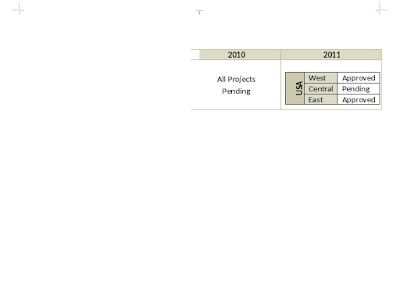
support both nested tables and multiple columns with the proper spacing in
between them in the RTF import. For comparison, here is how this looked in
LibreOffice 3.4:
Old rendering
The table borders looked OK due to correct column spacing, but the nested
table is missing. Then here is the LibreOffice 4.4 state:
New rendering, first try
Nested table is OK, but the table borders are strange due to incorrect column
spacing. Finally here is how it looks like now, when the import result is
correct:
New rendering, final
Other than this, here is a list of other topics I hacked on:
Last week I went to Zaragoza to give a talk on
how
LibreOffice handles interoperability at Protocols Plugfest Europe 2015 on
Tuesday. Although I was told
this conference is a successor of the previous Zentyal Summit (and I were not
there) the conference seemed well-attended -- proof above. :-)
On the same day, there were some explicit spare time, so I took the
opportunity to walk in the historical parts of the city, see
my
photos and a panorama if that kind
of pictures are of your interest. FWIW, Hotel
Sauce has free wifi in the rooms, that's kind of impressing for a two-star
category. ;-)
As usual, thanks Collabora for sponsoring this travel!
TL;DR: Import of old-style (pre-2010 for RTF, pre-2007 for DOCX) math
equations embedded into text documents should be now imported as editable
embedded math objects.
Longer version: if you want to embed math equations into RTF or DOCX files,
you have two choices. The older approach is to embed a MathType OLE object
into the file, the newer one is a native OOXML markup, which has an RTF markup
equivalent as well. Handling of the later has been implemented by
Luboš Luňák for DOCX a long time ago, and I
contributed the RTF equivalent almost
3 years ago.
What remains is the handling of the older version, the embedded OLE object.
Previously only the replacement graphic was imported, so regardless of the
Tools -> Options -> Load / Save -> Microsoft Office -> MathType to Math
checkbox, the result was never editable.
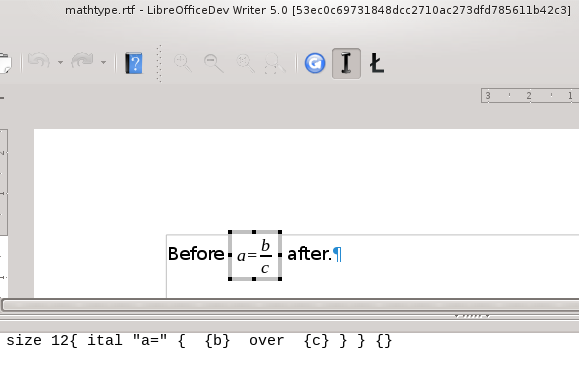
Here is how it looks like now:
Editing MathType in Writer
Given that the RTF and the DOCX importers share lots of code in the
writerfilter/ module, I implemented the same for the DOCX import at the same
time, too. The interesting challenge was that writerfilter wants an
XFilter
implementation for the embedded object if it is to be handled internally by
LibreOffice, but the MathType filter (originally created to handle math
objects inside binary DOC files) didn't have one. Once I implemented such a
filter
wrapper, the
rest
wasn't too hard.
Here are
testdocuments
if you want to try it yourself. You'll need a 5.0
daily build for that, though.
;-)
If I'm at describing features new in LibreOffice Writer 5.0 file filters, here are a few more:
Do these sound interesting? Look at what others did for LibreOffice 5.0 on
the TDF wiki, even if
it's far from complete, as the 5.0 branch is not yet created. :-)
On Saturday I gave a talk at the Open IT 2015
conference about the new features of LibreOffice 4.3 and 4.4. My uploaded
slides are available
here.
Thanks Óbuda University for hosting us, it was a
great event! Other than talking to the usual suspects like
Tamás Zolnai or
Gábor Kelemen, I enjoyed
two OpenStreetMap talks: it was extermely cool to hear that finally the
turistautak.hu community
changed
their license in February so that all their free maps can be imported to
OpenStreetMap -- finally one pointless fight ends.
On Tuesday the 5th Open Source Budapest meetup was held, I was one of the
invited speakers, and gave a lightning talk about
ged2dot, both as a standalone Python
script and as a
LibreOffice
extension.
In from selections to graphic
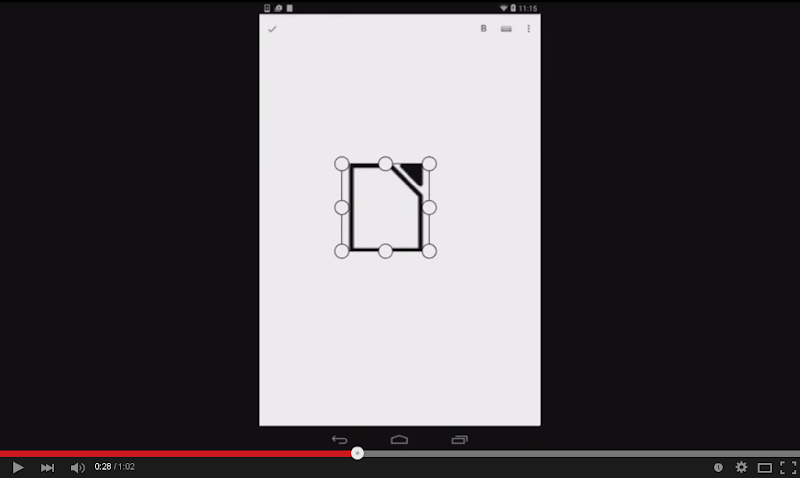
handling, I wrote about how we let the LibreOffice Android app select, resize
and move images and shapes. Now that we have all type of selections (at least
for Writer) in this
TDF-funded
project, let's do some formatting! The example implemented by
Jan Holesovsky here is to mark the text bold,
but you can imagine that using the same technique a number of other character
or paragraph properties could be set the same way with little work.
Here is how it works:
When you click on toolbar buttons on the desktop UI, so-called UNO commands
are invoked, bold is .uno:Bold.
This command is generated by the native Android UI as well, and passed to
the lok::Document::postUnoCommand() LOK API.
Then the LOK implementation uses the recently introduced
comphelper::dispatchCommand() internal API to actually execute it.
In all applications (Writer, Calc, Draw and Impress) this command is then
evaluated on the current selection: so if you have a cursor position, then
from now on the new characters will be bold -- or if you have a selection,
then that will be adjusted. The point is that this works exactly how it
happens with the desktop UI, reusing the same code.
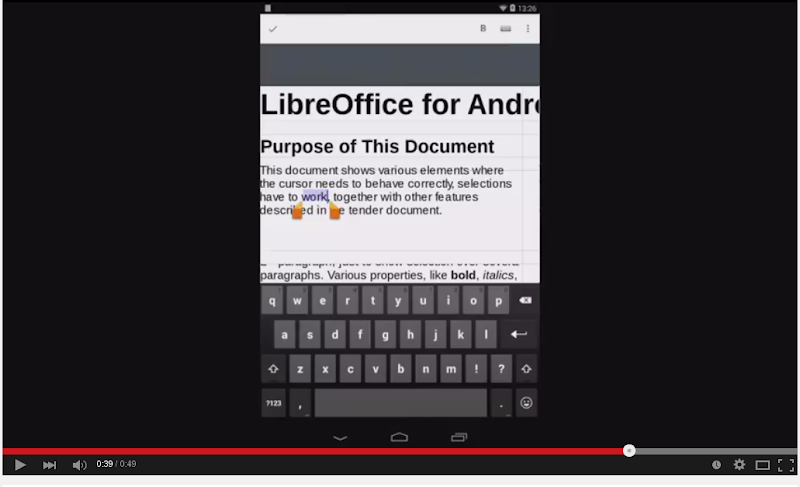
If you are interested how this looks like, here is a demo (click on the image to see the video):
Notice that Calc also gained a number of new features, like cell selection,
blinking cursor, text selection with much help from Henry Castro.
Now that Writer is nearly functional for the basic editing features that would
be good to see in all four applications, time to look at what's new in
Impress-land!
To bring Impress in line with Writer, we implemented the followings with
Tomaž Vajngerl:
shape text now has a blinking cursor with a cursor handle that can be
dragged
long push on a word results in a shape text selection with selection handles
that can be dragged
it's now possible to resize shapes
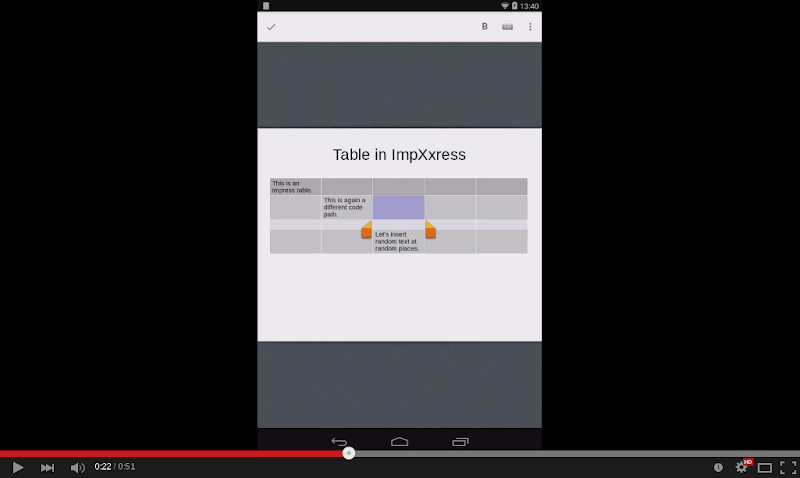
Impress table selections can be created in two ways: either by long pushing
on an empty Impress table cell, or by long pushing on shape text inside a
cell, and then turning that shape text selection into a table one.
it's possible to tap on a selected shape without text to add text to it.
For many of the above features, the core part was already implemented due to
Writer shapes, what was missing is to call the same editeng methods from
Impress and/or do missing core coordinates -> LOK coordinates conversions. The
later is twips for both cases in Writer, but Impress works in 100th millimeters
internally, so it was necessary to do a number of conversions here and there
so that LOK callbacks always emit coordinates in twips.
We also prepared more in-depth technical documentation about the Android
editing work, libreofficekit/README and android/README now has much more
details about how exactly the editing works.
That's it for now -- as usual the commits are in master (a few of them is only
in feature/tiled-editing for now), so you can try this right now, or wait till
the next Tuesday and get the
Android
daily build. :-)
In from input handling to
selections, I wrote about how we let LibreOffice Android app draw the
selections around text content natively. A next step in this
TDF-funded
project is to provide selections around more UI elements: images and shapes.
Here are a number of challenges we (Tomaž Vajngerl and me) faced while we implemented this:
On Linux (the desktop), the move and resize operations are really similar:
if you click near a resize handle (you "hit it"), then it'll be a resize,
otherwise it'll be a move. Defining "near" means that you don't have to
click exactly at the center of the handle, but we allow some tolerance. Turns
out that the tolerance depended on the pixel size of the handle drawn on the
desktop: and because we don't package the bitmaps of the desktop UI, that
tolerance was 0.
Writer normally requires a click and a double-click to start editing shape
text. One to select the shape and another to actually start the text
editing. Instead of literally translating this to a tap and a long push, we
wanted to start text editing right away if the user tapped on shape text.
Shape text doesn't use the normal Writer text, but editeng -- used by
Impress and Calc, too. So we had to instrument the editeng module as well to
expose the blinking cursor, so that if you tap inside the editeng text, you
have some feedback where you are. Same is true for the cursor handle: once we
knew where the cursor is, we could draw the cursor handle, but dragging it did
nothing: now the setTextSelection() LOK API handles the case when the cursor
is inside editeng text and can adjust the cursor position there, too.
On Linux, users got used to the following resize behavior: when images are
resized, the aspect ratio is kept, but this is not the case for shapes. We
wanted to keep this behavior on Android, too.
If you are interested how this looks like, here is a demo (click on the image to see the video):
Notice how the word selection in a table turns into a table selection, or how
a long push inside an empty cell creates a selection containing only the empty
cell.
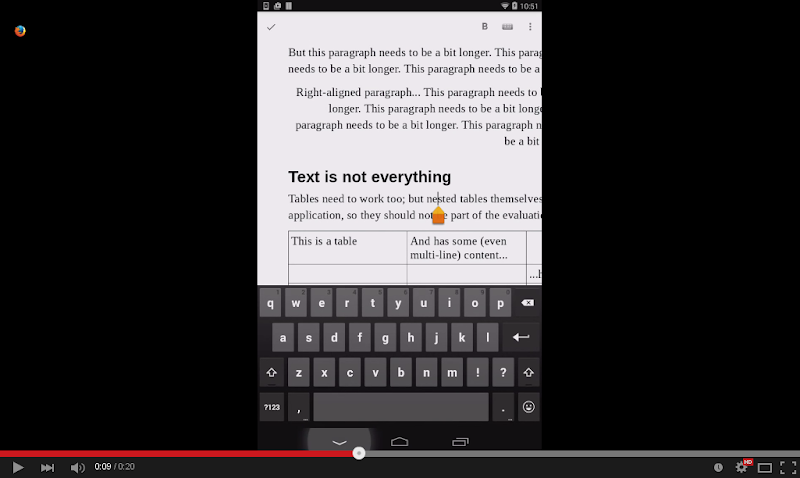
An other direction we're working towards is to show / hide the soft keyboard
of Android as you would expect it. On Linux, it's easy: the keyboard is always
available. However on Android you should track when it makes sense to use the
keyboard and when not -- and show/hide automatically according to the context.
Examples:
When you tap inside text, we show the keyboard.
When you finish editing, we hide it.
When you start scrolling, we hide it.
When you select an image, we hide it.
Additionally, we need to handle the situation when this automagic goes wrong.
The Android soft keyboard has a button to hide itself, but we added a toolbar
button to force-show it, too (click on the image to see the video):
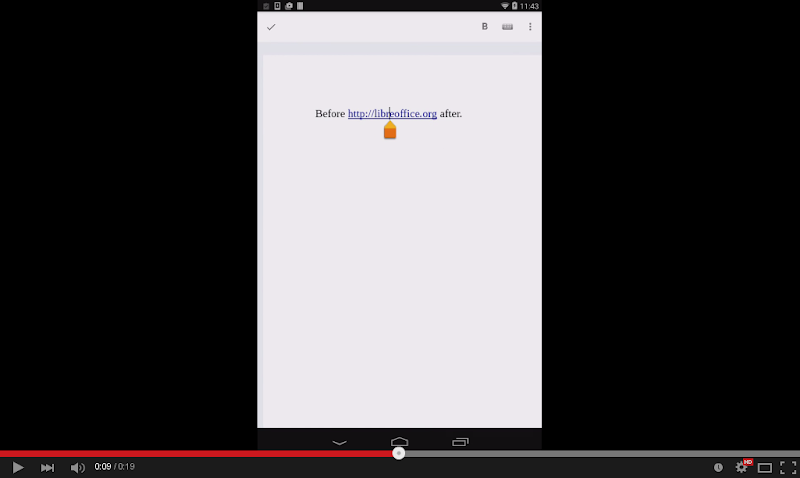
Finally, Siqi Liu added a new callback type,
allowing to tap on hyperlinks and handle them according to how you
configured URL handling on your Android device. Here is a demo to show this in
action:
That's it for now -- as usual the commits are in master (a few of them is only
in feature/tiled-editing for now), so you can try this right now, or wait till
the next Tuesday and get the
Android
daily build. :-)
Earlier I wrote about my setup to
hack libvisio. One missing bit was testing the contributed code. Testing can
be performed at various levels, so far DLP libraries were tested by recording
the output of the various foo2raw tools and then comparing the current output
to some previously known good state. This has a number of benefits:
If you know that the current state is good, then there is no need write
testcases, you can just record your state automatically.
Any change in the output fill signal instant failure, so it gives pretty
good test coverage.
The same technique was used in LibreOffice for Impress testcases initially,
however we saw a drawback there: Being automatically generated, you have no
control over what part of the output is important and what part is not -- both
parts are recorded and when some part changes, you have to carefully evaluate
on a case by case basis if the change is OK or not. The upshot is that from
time to time you just end up regenerating your reference testsuite and till
the maintainer doesn't do that, everyone can only ignore the test results --
so it doesn't really scale.
In short, both techniques have some benefits, but given that the
libvisio test repo
is quite empty, I thought it's a good time to give an other method (what we
use quite successfully in LO code) a go, too. This method is easy: instead of
recording the whole output of some test tool, output a structured format (in
this case XML), and then just assert the interesting part of it using XPath.
Additionally, these tests
are
in libvisio.git, so you can nicely put the code change and the testcase
in
the same commit. So the hope is that this is a more scalable technique:
Provided that make distcheck is ran before committing, you can't forget to
clone and run the tests.
Writing explicit assertions means that it's rarely needed to adjust existing
tests. Which is a good thing, as there are no tests for the tests, so
touching existing tests should be avoided, if possible. ;-)
Having testcase + code change in the same commit is one step closer to the
dream e.g. the git.git guys do -- they usually require documentation, code
and test parts in each patchset. :-)
Technically this method is implemented using a
librevenge::RVNGDrawingInterface implementation that generates XML. For now,
this is part of libvisio, so in case you want to re-use it in some other DLP
library, you need to copy it to your import library, though if indeed multiple
importers start to use it, perhaps it'll be moved to librevenge. The rest of
the test framework is a simple
testsuite
runner and a
cppunit
TestFixture subclass that contains the actual test cases.
So in case you are planning how to test your import library, then now you have
two options, evaluate them and choose what seems to be the better tool for
your purpose.
In from a living document to
input handling, I wrote about how we handle touch and on-screen keyboard
events in the LibreOffice Android app. A next step in this
TDF-funded
project is to provide more UI elements which are specific to touch devices:
selections is one of them.
Here are the problems we had to solve to get this working:
Long push is not an event core would recognize.
If you use the mouse and have a selection in Writer, it's only possible to
extend the end of it. If you use the keyboard, then it's possible to shrink
the end of it, but still no adjustment of the start. On touch devices, it's
natural to have selection handles at the start and end of the selection and be
able to adjust both, in both directions.
Additionally, when the user drags the selection handles, the expected
behavior is that the position of the selection and the handle are never the
same: the handle is placed below the selection position and when you drag the
handle, the new selection position is above the handle... ;-)
Long push is reasonable to map to double mouse click, as in both cases e.g. in
Writer the user expects to have a select word action. But for the adjustment
of selections, we really had to define a new API
(lok::Document::setTextSelection()) to allow setting the start or end of the
selection to a new logical (in document coordinates, not paragraph / character
indexes) point.
If you are interested how this looks like, here is a demo:
An other direction we're working towards is to have the same features in other
applications as well: Impress and Calc. Perhaps not so surprisingly, we hit
similar problems in these applications as well that we had to solve in Writer.
The typical problems are:
LibreOffice assumes a given portion of the document is visible (visual
area), but the Android view is independent from what LO thinks is visible.
Example: LO thinks a table is not visible, so it doesn't send the selection
events for the text inside the table, even if it's in fact visible on the
Android app.
Instead of calling Invalidate() and waiting for a timer to call Paint(), at
some places direct Paint() is performed, so the tile invalidation
notification triggered by Invalidate() is missing -> lack of content on
Android.
We render each tile into a VirtualDevice -- kind of an off-screen rendering
-- and at some places LO assumed that certain content like the actively edited
shape's text is not interesting, as it's not interesting "during printing".
LO's mouse events are in pixels, and then this is translated to mm100
(hunderd of milimeters) or twips in core. So counting in pixels is the
common language, while the Android app counts everything in twips, and
doesn't want to care about what would be visible at what pixel on the screen,
if LO would run in desktop mode. So we had to make sure that we can pass in
event coordinates in twips, and get invalidation coordinates in twips, even if
previously it was a mix of mm100, twips and pixels.
Here is how Impress looks like, with working tile invalidation, touch and
keyboard handling:
Calc is lagging a bit behind, but it also has working tile invalidation and
keyboard handling:
That's it for now -- as usual the commits of me and
Tomaž Vajngerl are in master (a few of
them is only in feature/tiled-editing for now), so you can try this right now,
or wait till the next Tuesday and get the
Android
daily build. :-)
In from viewing only to a
living document, I wrote about how tile invalidation can handle updates in
the Android app in case what should be displayed on the screen changes. A next
step in this
TDF-funded
project is to handle more than blinking text: keyboard and mouse/touch events
from the user.
First let me enumerate over the issues we had to face:
Gtk, Android and LibreOffice's VCL use different key codes for the same
physical keys. We solved this by mapping the special keys manually on the
Gtk/Android side (using the C++ and Java UNO binding), and for the rest,
we simply use the unicode representation of the keys.
Special keys: while "return" was easy to map, getting "backspace" to work
was more challenging. It worked fine on the Gtk side, but on Android we had
to make sure that the whole sfx2 dispatching framework works properly, only
then could map the backspace key to the correct UNO command, which is
.uno:SwBackspace in case of Writer.
Mouse handling: VCL sends pixel coordinates to the editing windows, they
then calculate the offset of the editing area (think about toolbars and
menus that have to be excluded), and then converts the pixel values to
document coordinates. In case of tiled editing, we always work with document
coordinates in logical units (twips), so we had to add the possibility to send
the coordinates in document ones. This allows core not knowing where the user
exactly is (in case the tiles are already ready, swiping can be handled
without any LOK calls), and also allows Android not knowing the implementation
details of the desktop app (where menus and toolbars would be).
Cursor caret overlay: we wanted to be sure that it's not necessary to
re-render the affected tiles each time the cursor blinks, so we added a LOK
API to send the rectangle (its width is nearly zero) of the cursor to Android,
and then it can handle the blinking cursor itself in a transparent overlay.
This overlay will be useful for presenting selections as well.
As usual the commits of me and Tomaž
Vajngerl are in master, so you can try this right now, or wait till tomorrow
and get the
Android
daily build. However, if you are just interested how this looks like, here are some demos:
Keyboard handling in gtktiledviewer:
Same on Android, including newlines and backspace handling:
Mouse handling in gtktiledviewer:
Same on Android, including the transparent selection overlay that can
efficiently blink the cursor:
That's it for now -- next on our list are selections, so you can delete and
overwrite more easily. :-)